# Configure the content provider

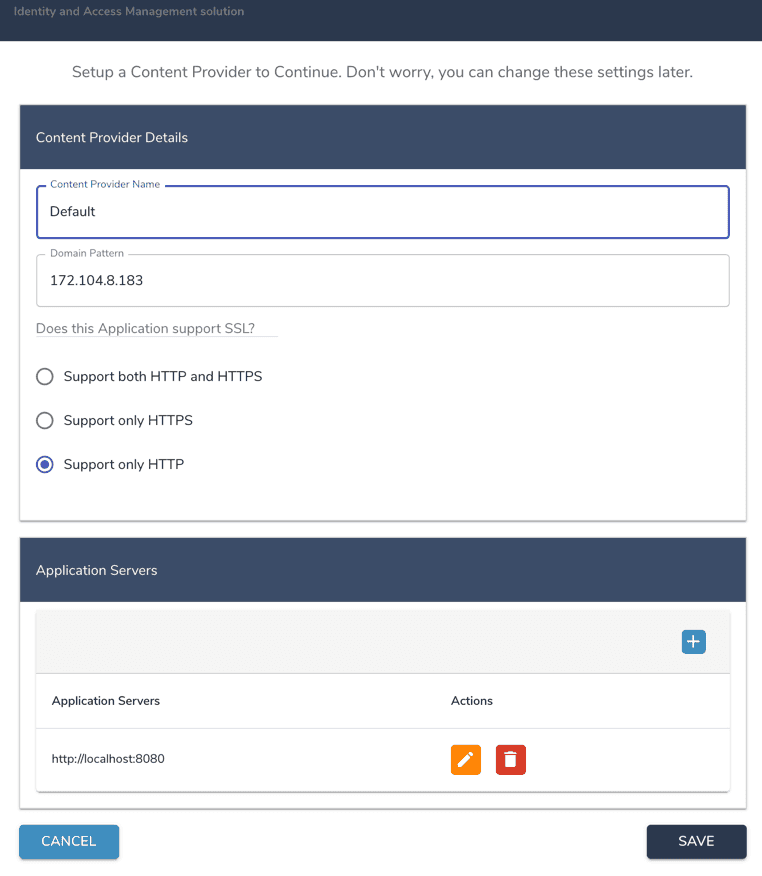
Configuring a content provider is an essential step for logging in to OpenIAM. A [**Content provider**](/getting-started/concepts.md) is an alias that represents a domain. It can be associated with UI themes, authentication policies, and more.

<table><thead><tr><th width="207.33331298828125">Name</th><th>Description</th></tr></thead><tbody><tr><td>Content Provider Name</td><td>You can think of a content provider as an alias that represents a domain. For this setup, enter a value such as: Default CP.</td></tr><tr><td>Domain Pattern</td><td>This field is prefilled. It should be the IP address or host DNS name of the instance where OpenIAM has been installed.</td></tr><tr><td>Application supports SSL?</td><td>This setting determines whether the OpenIAM application will be accessed over HTTP or HTTPS. Unless you have already configured the certificate, select <code>Support on HTTP</code>. You can update this later.</td></tr><tr><td>Application servers</td><td>This is the location of the OpenIAM service layer that the UI and rProxy use to communicate. In most cases, the default value is correct.</td></tr></tbody></table>

<figure><img src="https://docs.openiam.com/docs-2026.3.1/static/095f552f0fc14a81d6bcec8be3692470/a016c/content-provider-rpm.png" alt="Content provider setup"><figcaption></figcaption></figure>

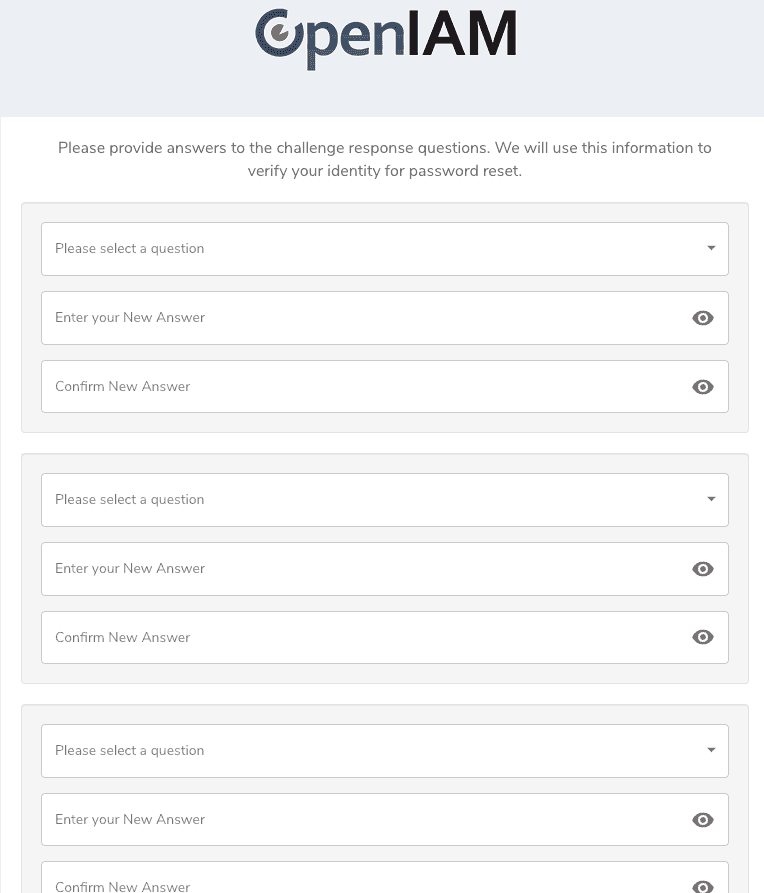
After setting up the content provider, you will be taken to the challenge questions page. These questions are used to reset your admin account if you get locked out.

{% hint style="info" %}
You can update the password policy later. At that time, you can decide whether to use challenge questions or another recovery method.
{% endhint %}

<figure><img src="https://docs.openiam.com/docs-2026.3.1/static/cb10e4db7d02acc67789c78edfece801/f3c12/challengequestions.png" alt="Challenge questions"><figcaption></figcaption></figure>

After completing these steps, you will be taken to the admin console landing page. Give the system about 5 minutes to refresh the internal cache.

<figure><img src="https://docs.openiam.com/docs-2026.3.1/static/660795e3721a67546447d34dd251f0e4/f21e7/landing-page.png" alt="Admin console landing page" width="563"><figcaption></figcaption></figure>

### Next step

Continue to [Access Grafana and Prometheus](/installing-openiam/access-grafana-and-prometheus.md).


---

# Agent Instructions: Querying This Documentation

If you need additional information that is not directly available in this page, you can query the documentation dynamically by asking a question.

Perform an HTTP GET request on the current page URL with the `ask` query parameter:

```
GET https://docs-beta.openiam.com/installing-openiam/configure-the-content-provider.md?ask=<question>
```

The question should be specific, self-contained, and written in natural language.
The response will contain a direct answer to the question and relevant excerpts and sources from the documentation.

Use this mechanism when the answer is not explicitly present in the current page, you need clarification or additional context, or you want to retrieve related documentation sections.